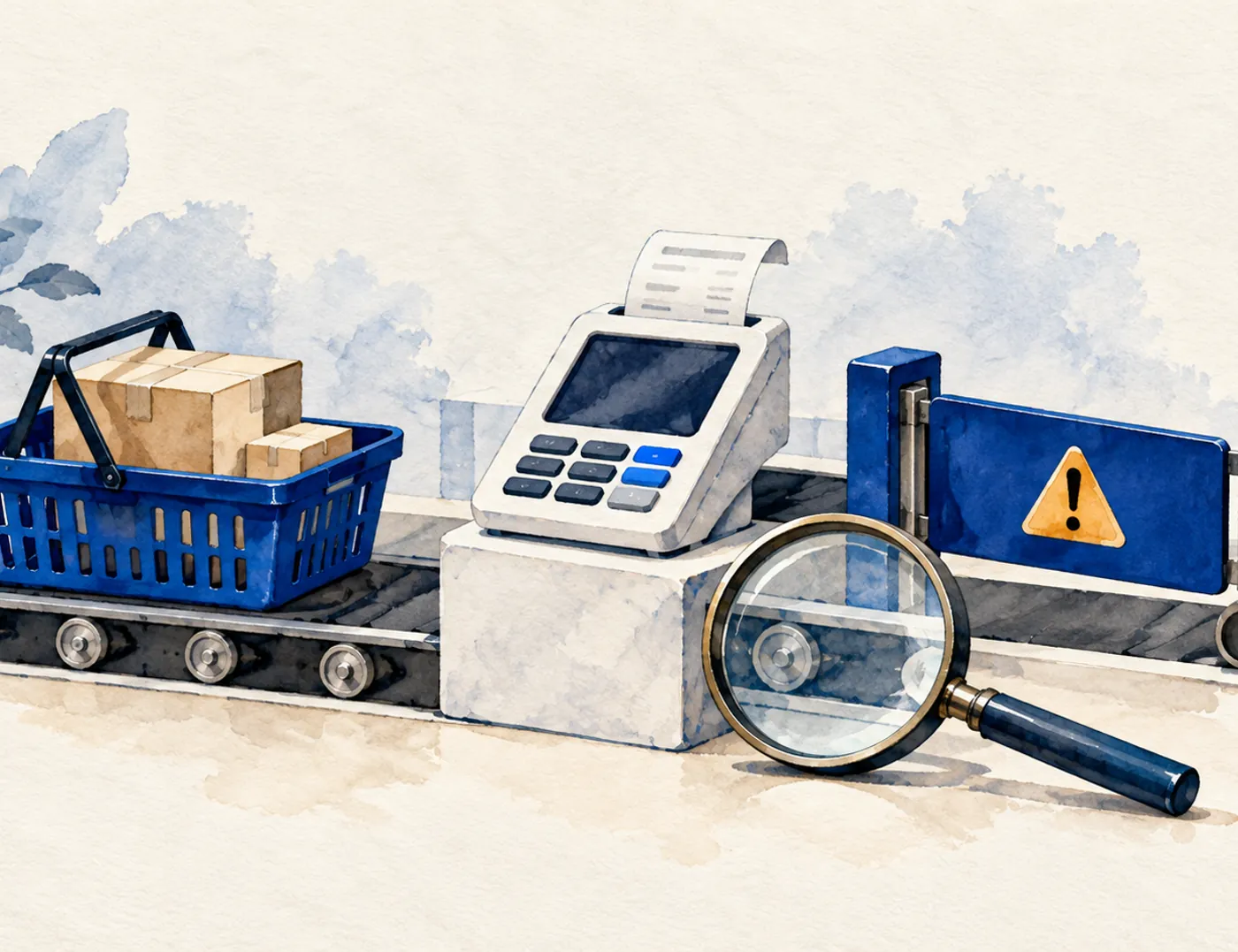
WooCommerce checkout problems can involve shipping settings, payment methods, cache or technical issues on the website. Do not immediately assume every checkout failure comes from the payment gateway. First identify where the customer gets stuck.
Some customers cannot click the place-order button. Others reach the bank page but the transaction fails. Some have paid, yet the website’s order status has not changed. These situations require different checks.
Start with these three questions
- Is the customer stuck before the payment page opens?
- Is the transaction declined or timing out during payment?
- Has money been deducted while the order still awaits payment?
Record the exact error, incident time, product and payment method. Keep the order number if available. Remove customer names, addresses, telephone numbers and payment information before sharing screenshots with support.
1. Checkout keeps loading or a button does not work
If the page loads continuously, note whether the issue began after a plugin update, theme change or optimisation feature was enabled. Recent change records help developers narrow the investigation.
Open the page in another browser or a private window without submitting an order or paying. Differences provide initial clues but do not prove the cause. If the whole website is slow, read about slow website causes and initial checks.
Plugin and theme conflict tests should be handled by the technical team on a test copy, or staging site. Do not disable every plugin on a store serving customers simply to experiment.
2. Payment options do not appear
Check that the relevant payment method is enabled and the merchant account remains usable. Some methods only appear for matching countries, currencies or transaction conditions. Confirm the payment integration supports the checkout type, such as Checkout Block or classic checkout.
Keep test settings and real transaction settings separate. Do not copy API keys or merchant passwords into comments, public forms or screenshots. Read the payment provider’s documentation before changing settings.
3. Customers cannot select shipping
A “no shipping options” message is not necessarily a payment issue. Check shipping zones, postcodes, available methods and product details such as weight where courier calculations require it.
For example, Peninsular Malaysia rates may be configured while Sabah and Sarawak are not covered. Check areas the store actually serves; do not enable every destination merely to remove the error. For store preparation, see the products, payments and shipping checklist.
4. Transactions fail after the payment page opens
Read WooCommerce order notes and compare them with the payment gateway dashboard. Check whether the transaction was declined, cancelled or timed out. One failed transaction does not prove the entire website is broken; establish whether one customer, one payment method or all transactions are affected.
If a customer says money was deducted, verify transaction records first. Do not ask them to repeatedly press the payment button. Give the payment provider relevant reference numbers through a secure support channel.
5. Payment succeeds but the order status has not changed
The website and gateway exchange information to update orders. Depending on the integration, notifications may arrive through callbacks or webhooks. A disruption can leave the website status inconsistent with the transaction record.
The technical team should check order notes, integration logs and notification delivery records using the gateway’s guidance. Do not immediately mark every order as paid. First match the reference number, amount and actual transaction status.
Interpret statuses according to the payment method too. A manual bank transfer order may remain On hold until payment is verified. For physical products, Processing generally means payment was received and the order needs preparation; not yet being Completed does not necessarily indicate an error. Refer to WooCommerce’s official order-status troubleshooting guidance.
6. Cache shows incorrect cart information
Cart, checkout and customer account pages show information specific to each user. WooCommerce recommends excluding these pages from page caching. Review plugin, hosting and CDN settings together, rather than only one layer.
Ask the technical team to use WooCommerce’s caching guidance. Do not disable security protection across the website or copy exclusion code blindly. Correct the relevant settings without disrupting other areas.
Distinguish checkout problems from email problems
If the order and payment are recorded correctly but an email is missing, investigate email delivery. Changing gateway settings may not help. Check spam, recipient addresses and delivery records. The guide to website emails not reaching the inbox explains the difference between a success notice and inbox receipt.
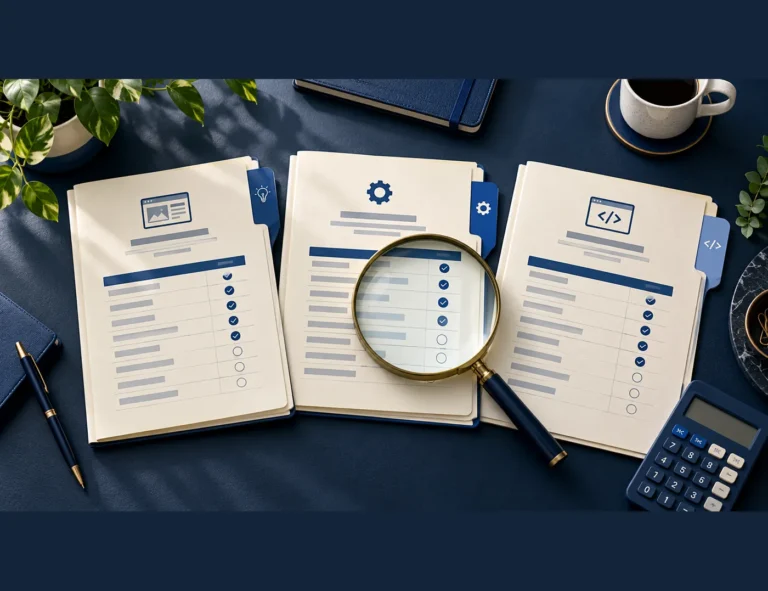
Prepare this information before a repair
- The affected page URL and exact error message.
- The incident time and whether all customers or particular methods are affected.
- Order and transaction references shared through a secure support channel.
- Recent website changes.
- Details of the latest backup and whether staging is available.
Before changes, ensure the backup covers files and the database. On an active store, restoring an old backup can remove orders received afterwards. Repairs must account for current order data, rather than simply returning the website to an older state.
After repair, controlled tests on staging or a gateway sandbox should cover the journey from cart to order confirmation, payment status, stock and email. Refer to official payment troubleshooting guidance. Evaluate results against the payment methods and products actually used.
Need help checking checkout?
If customers still cannot complete purchases, request an inspection before replacing plugins or rebuilding the store. See alfatihstudio Website Repair for an initial assessment. Include the URL, error and incident time to help identify the problem. The repair scope is determined after inspection.
Frequently asked questions
Possible causes include plugin or theme conflicts, optimisation settings and interrupted server requests. Record the timing and recent changes, then investigate on staging before changing the live store.
Check payment-method activation, merchant account status, country, currency and compatibility with the checkout type. The cause depends on the conditions and integration used.
Match the reference, amount and gateway transaction record with WooCommerce order notes. Have the technical team check payment notifications, and do not ask the customer to pay again before verifying the transaction status.
Not necessarily. For physical products, Processing generally means payment was received and the order awaits preparation or dispatch. Assess the status against the product and payment method.
Do not run that test directly on a store serving customers. Use staging with suitable backups and gateway sandbox testing, preferably managed by the technical team.