Archive tutorial: the interface and software versions shown are from the original guide and may differ from current versions.
There are several ways to install WordPress, including software supplied through your hosting cPanel, such as
Softaculous
or
Fantastico De Lux.
These tools are easy to use. Manual installation is another option.

This guide explains how to install WordPress using
Quick Install
in cPanel.

1. Log in to
cPanel
at www.domainanda.com/cpanel.
2. Click the
Quick Install
icon under
Software and Services.

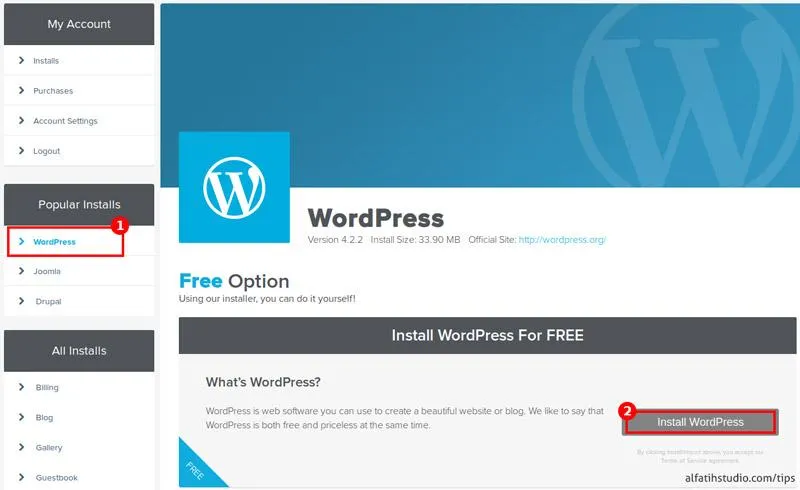
3. In the left-hand menu, under
Popular Installs,
click
WordPress
, then click
Install WordPress.

4. Complete the requested details.

1. Domain — your main domain.
2. Subdomain or installation folder, for example www.mojo.com/optionalsitepath. Leave this field empty to install directly on the main domain.
3. Enter a valid Emailaddress, where the WordPress password will be sent.
4. Blog Title — you can edit this later.
5. Username for logging into the WordPress administration area.
6. Your First Name
7. Your Last Name
8. Click Install WordPress after completing the details above.
The progress bar at the top shows installation progress. Once it finishes, check the email address you provided for your administration Dashboard details, including the username and password.
You can also view administration details at the top right under
Credentials.

Done.
Note: leave any questions in the comments. Thank you.