
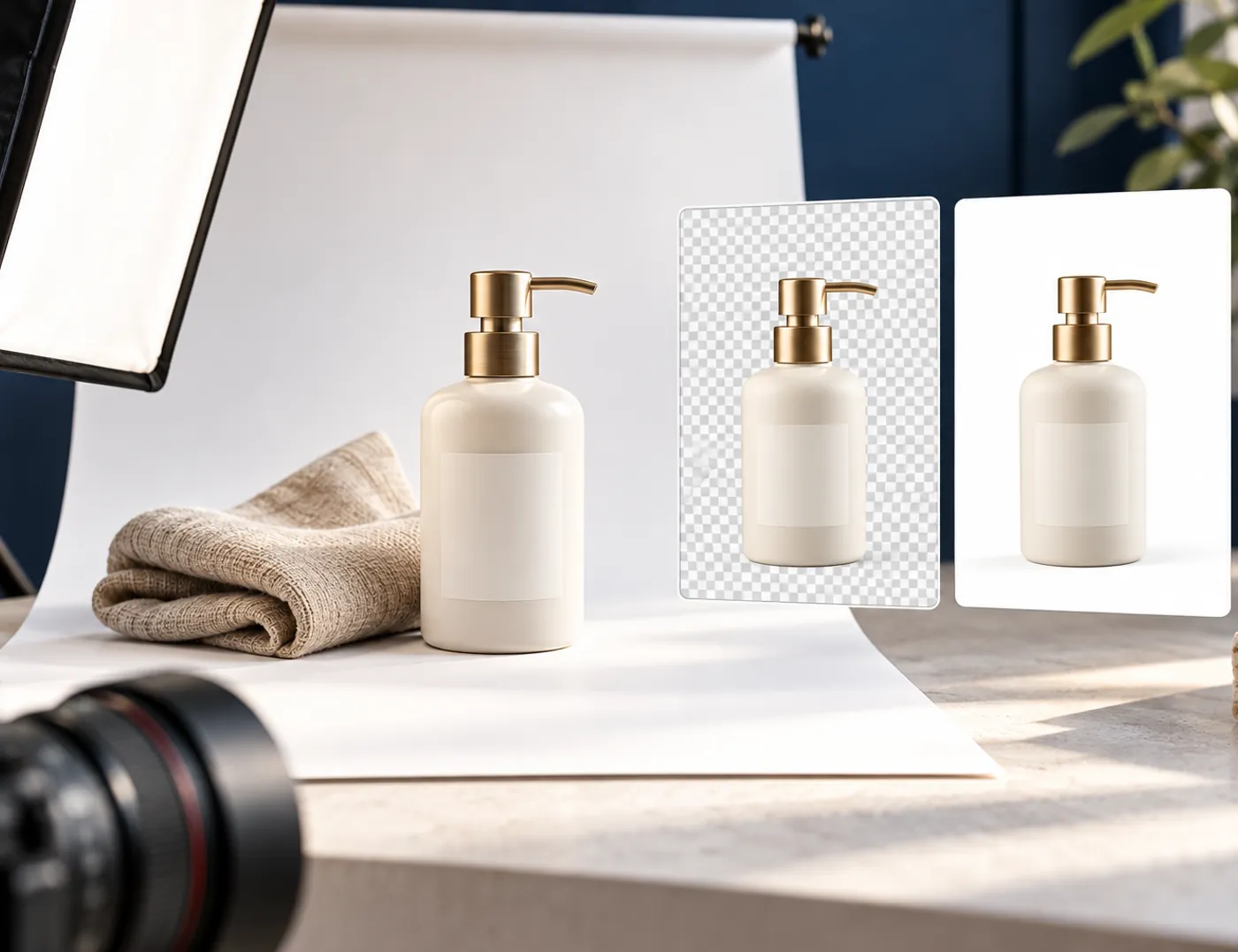
An attractive product photo is not always ready to upload to a website. The original phone image may be too large, products may have inconsistent spacing, or labels may become blurry after compression. The catalogue can look uneven and require more data to load.
Start with three decisions: where the image will appear, which dimensions are sufficient, and how much compression preserves useful detail. This guide covers catalogue images, product pages and banners without requiring a complete website redesign.
1. Decide where each image will appear
A small catalogue thumbnail does not need the same file as a main image with a detailed zoom function. Check your theme first. If the catalogue uses square frames, use a consistent ratio for the main images so products remain aligned as customers scroll.
- Catalogue: use consistent framing and keep products recognisable on a phone.
- Product page: include the main view, side views and important details such as materials, labels or connections.
- Banner: choose an image that still works when cropped on smaller screens. Keep important information away from the edges.
You do not need to remove every background. Lifestyle photos explain scale and context, while plain backgrounds make products easier to compare. Use both when they help customers make a decision.
2. Choose dimensions before chasing a KB target
As a practical starting point, try around 1200 × 1200 px for square catalogue images and moderately sized main views. If zoom requires finer detail, test larger dimensions. This is a working suggestion to check against your theme, not a universal requirement.
Uploading a 5000 px image for a small display area is often unnecessary. Enlarging a small original will not restore missing detail either. Keep the original file and create a separate website version.
Dimensions and file size are different: 1200 × 1200 px describes width and height, while 180 KB describes the amount of data. Two images with identical dimensions can have very different file sizes because of texture, format and compression.
3. When should you use WebP, JPG or PNG?
WebP supports lossy compression, lossless compression and transparency, making it a useful format to test for website images. It is not automatically the smallest option for every image; compare actual exports. See Google’s explanation of WebP.
- WebP: try it for product photos and images that need transparency.
- JPG: another option for photos with a full background; it does not preserve transparency.
- PNG: useful when you need exact detail or a working copy with transparency. Check its file size before uploading.
Renaming a .png extension to .webp does not convert the image. Use an export function or converter that creates a new file in the chosen format.
4. Remove the background without changing the product
Use the alfatihstudio Background Remover when the background distracts from the product. Light mode is free; High Detail access costs RM20 once, subject to the device requirements explained on the tool page.
After removal, inspect the edges against both light and dark backgrounds. Pay attention to glass, clear plastic, brush bristles, thin straps and shadows. If part of the product disappears, return to the original or edit it again rather than presenting a misleading shape.
A grey checkerboard in an editor usually indicates transparency. If that pattern is already part of the original image, converting the file to WebP will not automatically remove it. Check that the exported file actually has transparency.
5. Compress the file and inspect the export
Open the Image Compressor & Resizer, add the image, choose suitable dimensions and try a WebP export. Start with moderately high quality where available, then compare the result with the original.
For many ordinary catalogue photos, you can try a target below 200 KB. This is a working target, not an SEO requirement or a promise that every photo can meet it at acceptable quality. Complex photos and detailed zoom images may need larger files.
- Inspect labels, fabric texture and fine lines at the actual display size and at 100% zoom.
- If the result looks blurry, increase quality or use more suitable dimensions.
- If the file remains heavy, crop unnecessary empty space before reducing quality further.
- Compare a few sample images before processing the entire catalogue.
Images are only one factor in page speed. If pages remain slow after optimisation, read the guide to checking a slow website for other possible causes.
6. Write useful filenames and alt text
Use a filename such as white-ceramic-soap-bottle-300ml.webp instead of IMG_4821.webp. Write concise alt text describing the image, for example “Front view of a white 300 ml ceramic soap bottle”. Avoid keyword lists and claims that the image does not support.
Google recommends meaningful filenames and alt text relevant to the image and surrounding content. These support understanding and accessibility, but do not guarantee search rankings. See Google’s image SEO guidance.
A checklist before uploading
- The product, colour and variant match the item being sold.
- Main images use a consistent ratio and do not crop out the product.
- Labels and important details remain clear after compression.
- File sizes have been checked and originals saved separately.
- Filenames and alt text describe each image accurately.
- Mobile display, gallery, zoom and transparency have been tested on the actual website.
Organised images also make catalogue preparation easier. Read the online-store preparation checklist to prepare variation, payment and shipping information too.
Need help organising your website catalogue?
If your images are ready but the catalogue structure, variations or buying journey remain unclear, review alfatihstudio’s e-commerce packages to understand the available scope. Prepare sample images and a product list so your requirements can be discussed clearly.
Frequently asked questions
There is no universal size. As a starting point, try 1200 × 1200 px for square images and check your actual theme. Zoom functions or larger displays may need higher dimensions.
No. Below 200 KB can be a useful target for many ordinary catalogue photos, but quality, texture and zoom requirements matter. Inspect the actual result and avoid removing important detail through excessive compression.
Yes. WebP supports transparency. Make sure the export tool preserves it and check the file against light and dark backgrounds. JPG does not preserve transparency.
No. Format conversion and background removal are separate processes. Remove the background with a suitable tool first, then export to a format that preserves transparency.
Light mode is free. High Detail access costs RM20 once. Check the device requirements on the tool page before choosing that mode.