Archive tutorial: this English version describes the original software and interface. Steps and screenshots may differ from current versions.
OpenCart is a free, open-source e-commerce system that users can maintain. It displays products and lets visitors purchase through Add to Cart.
This guide explains how to add products to an OpenCart website. Start by creating product categories so the products you add can be classified appropriately. Categories help visitors choose and find products.
Adding product categories
- Open www.domainanda.com/admin and log in with your username and password.
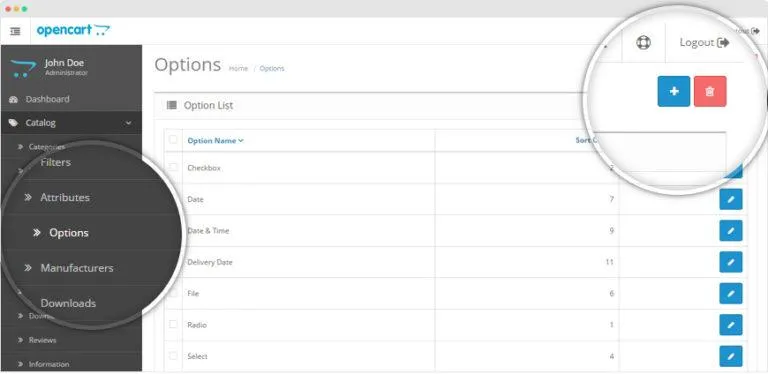
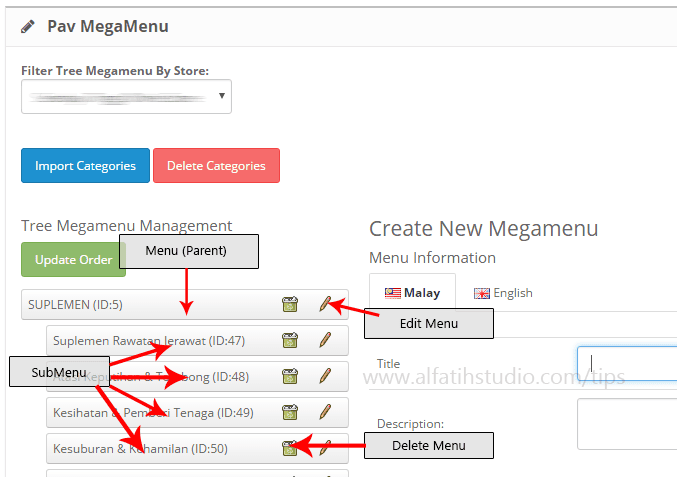
- Click Categories.
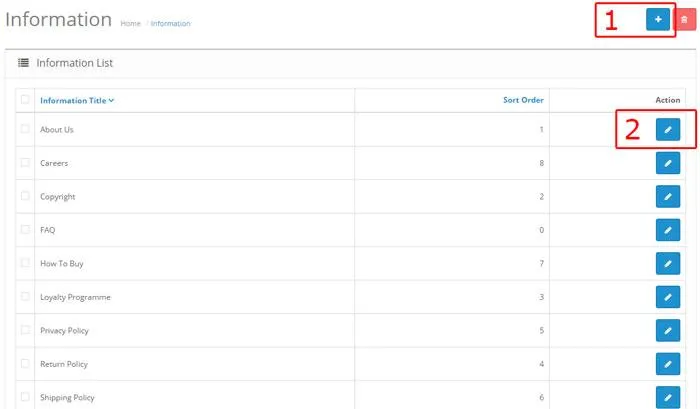
- Click Add New, shown by the add icon at the top right.
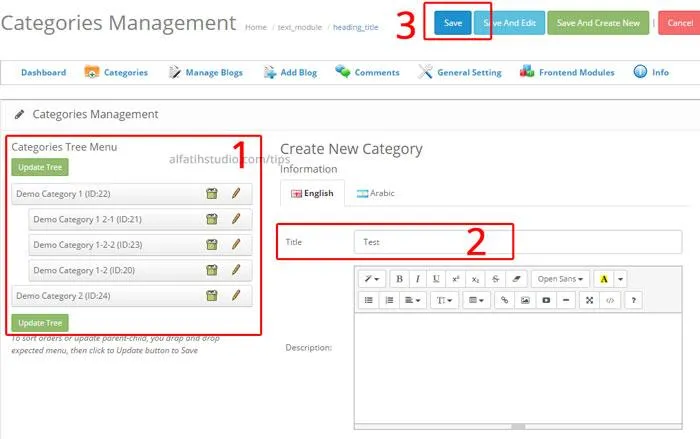
- Enter a category name suited to the products. Use the same category name in Meta Tag Title.
- Click Save at the top right.
Repeat steps 3–5 to add more categories.
Adding products in OpenCart
- Log in to the administration area. If you are already there, click Products.
- Click Add New at the top right, using the same button as when adding categories.
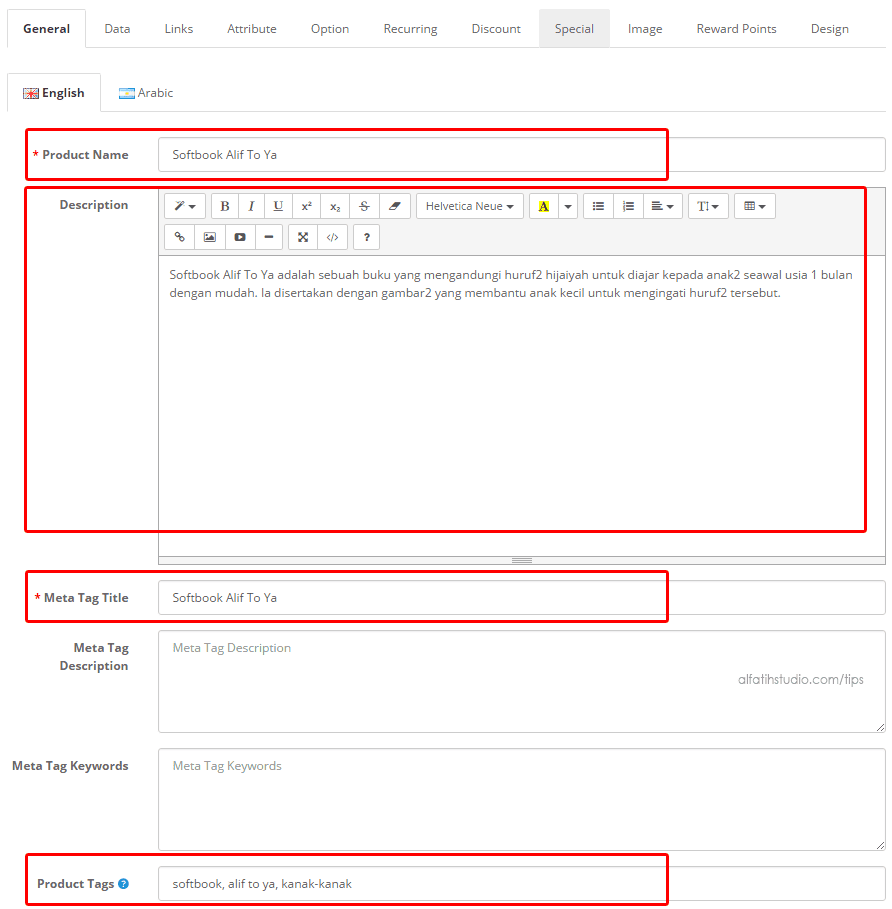
- Complete the General tab. More useful information helps visitors understand the product.
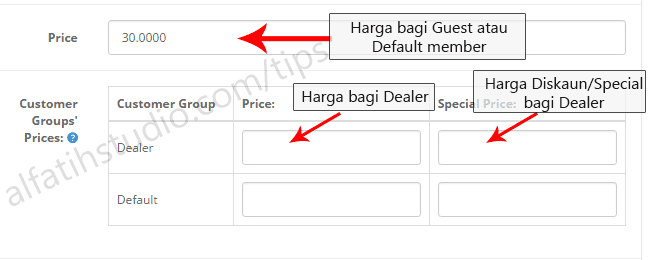
- Complete the product details in the Data tab, following the original illustration.
- Under Links, choose a suitable category. Type its name and select it from the autocomplete list.
- To add more product photographs, open the Image tab and add them there.
- When finished, click Save at the top right.
Repeat steps 2–7 for other products. Done.
Original guide illustrations


Links from the original guide
https://alfatihstudio.com/tips/wp-content/uploads/2015/10/log-in-opencart.png
https://alfatihstudio.com/tips/wp-content/uploads/2015/10/kategori-produk-di-opencart.png
https://alfatihstudio.com/tips/wp-content/uploads/2015/10/insert123.png
https://alfatihstudio.com/tips/wp-content/uploads/2015/10/masukkan-kategori.png
https://alfatihstudio.com/tips/wp-content/uploads/2015/10/save-opencart.png
https://alfatihstudio.com/tips/wp-content/uploads/2015/10/masukkan-produk-dalam-opencart.png
https://alfatihstudio.com/tips/wp-content/uploads/2015/10/cara-masukkan-produk-opencart-general.png
https://alfatihstudio.com/tips/wp-content/uploads/2015/10/cara-masukkan-produk-opencart-data.png
https://alfatihstudio.com/tips/wp-content/uploads/2015/10/cara-masukkan-produk-opencart-links.png
https://alfatihstudio.com/tips/wp-content/uploads/2015/10/cara-masukkan-produk-opencart-image.png