Archive tutorial: this English version describes the original software and interface. Steps and screenshots may differ from current versions.
When a customer places an order in OpenCart, the website automatically sends an invoice or purchase statement. Management also receives an email about the new order. If the customer or administrator does not receive it, an error or incorrect email configuration may be responsible.
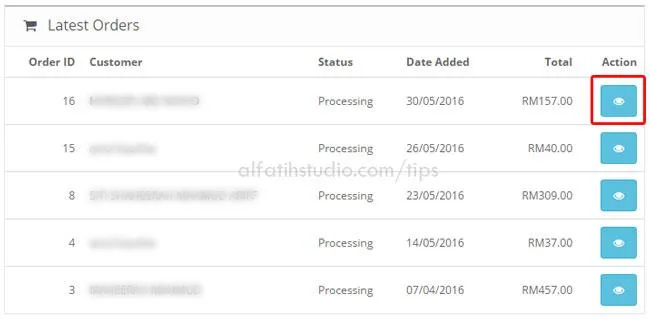
When you log in, the newest orders appear under Latest Order.
- Click the blue button on the right of the newest order at the top. You can also view every order under Sales > Orders.
- In the order, click Generate Invoice and Reward Point to confirm the order and add the customer’s reward points. You can also open Payment Details, Shipping Details, Products and History for further information.
- Under History, change the order status, such as Shipped, Complete or Cancel. Tick Notify Customer if you want an email notification sent. Complete Comment when needed, for example with a tracking number or message.
Click Add History when finished. Done.
Original guide illustrations