Archive tutorial: this English version describes the original software and interface. Steps and screenshots may differ from current versions.
Websites using PavoThemes’ Pav Blog module have a blog management area within their e-commerce system. This guide covers blog posts and categories.
Go to Extensions > Modules and click Edit for Pav Blog Management.
The Dashboard contains the following icons:
- Categories: manage blog categories.
- Add Category: create a category.
- Blogs: list existing blog posts.
- Add Blog: create a post.
- Comment: list comments submitted by readers.
- Modules Setting / General Setting: configure the website’s blog page.
- Frontend Modules: configure sidebar modules such as latest posts and latest comments.
Managing blog categories
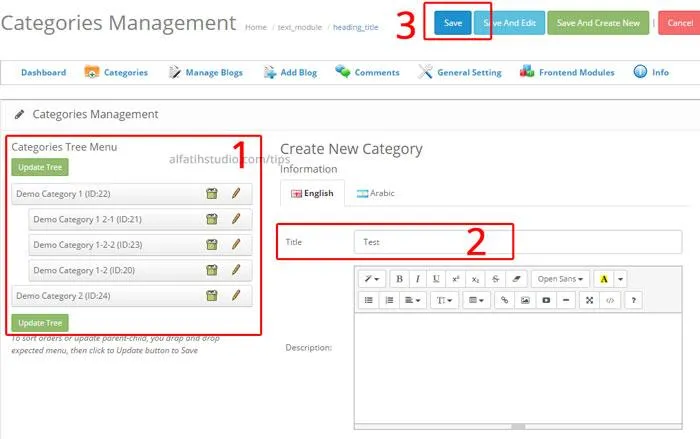
- Click Categories (a) on the Dashboard.
- To add a category, enter its name in Title (2), then click Save (3). It appears in the list on the left (1).
- In the next illustration, (1) is the new category. Use button (2) to delete a category or button (3) to edit one.
Drag categories up or down to reorder them, or to the right to make a subcategory. Then click Update Tree.
Managing and adding posts
- Click Blogs to see existing posts.
- Click Edit (1) to change a post. View its click count in column (2). To delete, tick a post in box (3) and click Delete (4), or use Unpublish (5).
- Click Add Blog (6) to add an article.
- Complete the required fields in Add Blog: choose a category (1), select Yes for Status to publish (2), select Yes for Featured if required (3), enter relevant keywords (4), enter a title (5), add a short homepage description (6), and enter the full article in Content (7).
The Content area also supports images, bold, italic and other text formatting.
- Under Image-Gallery, add a relevant article image (1) for the blog’s front page. You can also enter a YouTube embed code in field (2).
- When finished, click Save at the top. Done.
Original guide illustrations