Archive tutorial: the interface and software versions shown are from the original guide and may differ from current versions.
I will show you
the basic way to add an article to a WordPress website
. WordPress was once best known for personal blogs, but it can also support magazine, corporate and e-commerce websites, among other uses.
The steps for adding an article, called a ‘Post’ in WordPress, are below.
1. Open your WordPress administration page. Enter www.lamanwebanda.com/wp-admin, replacing lamanwebanda.com with your actual website address.
Enter your username and password, then click
Log In

2. In the administration area, click
Add New
under Posts, as shown in the image below.
To edit an existing article, click All Posts.

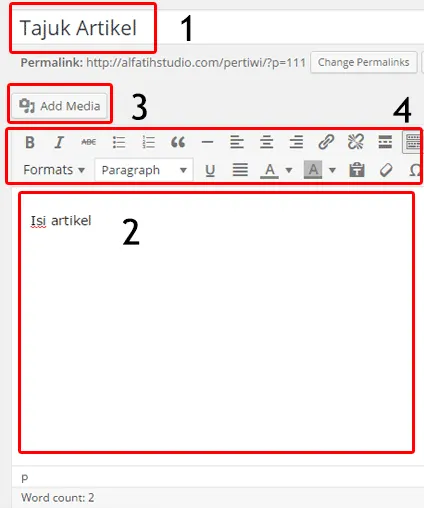
3. Enter the article title (1), article content (2) and images (3). Bold, text colour and alignment controls are shown in the area labelled 4.

Note: the original guide recommends pasting content copied from Microsoft Word or another website into Notepad first, then copying it from Notepad into the article field.
4. Select a suitable
Category
(5) so the article appears in the correct category on your website.
Tags
are relevant keywords for your article. The original guide recommends several keywords, using no more than three words per keyword phrase.

5. Add a featured image here. Click
Set featured image
and upload a suitable picture. The featured image is important for the website’s front-page presentation.
6. When the article is ready, click
Publish.

Done.