Archive tutorial: this English version describes the original software and interface. Steps and screenshots may differ from current versions.
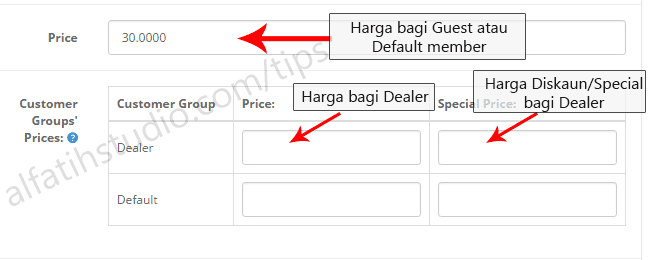
OpenCart Options let you add product choices such as size and colour. The original guide also uses options for Sabah and Sarawak prices when they differ from Peninsular Malaysia prices.
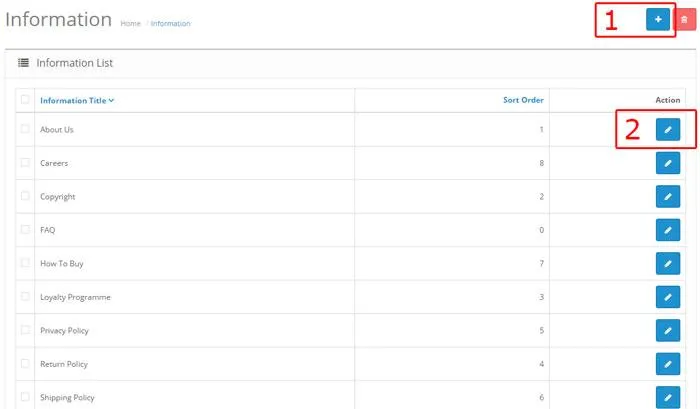
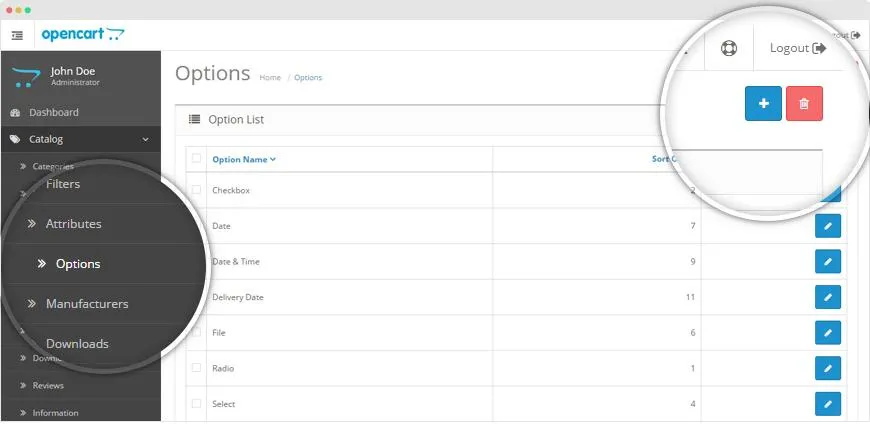
- Go to Catalog > Options, then click New or the + icon at the top right.
- For size, colour or Sabah/Sarawak price options, the guide generally uses the Select or Radio type. Follow the original illustrations, including the one for OpenCart 2.0. After adding every size, colour or state, click Save.
- Edit the product that should use the option. Open its Option tab, type the option name, such as Size, then select the matching autocomplete suggestion.
Quantity must have a value; otherwise, the system treats the product as out of stock. Price adjustments can be positive or negative. For example, if the base price is RM10 and XXL costs RM12, enter +2. The same adjustment approach applies to Points and Weight.
Click Save when finished. The original illustrations show how an option appears on the website.
Original guide illustrations


Links from the original guide
https://alfatihstudio.com/tips/wp-content/uploads/2016/04/tambah-saiz-opencart.jpg
https://alfatihstudio.com/tips/wp-content/uploads/2016/04/tambah-saiz-opencart-2.png
https://alfatihstudio.com/tips/wp-content/uploads/2016/04/tambah-saiz-opencart-15.jpg
https://alfatihstudio.com/tips/wp-content/uploads/2016/04/tambah-saiz-opencart-3.png
https://alfatihstudio.com/tips/wp-content/uploads/2016/04/option-dalam-opencart.png