Archive tutorial: this English version describes the original software and interface. Steps and screenshots may differ from current versions.
Some online stores have several customer groups, such as agents, wholesalers and premium members. A customer group pricing system lets the owner set prices for each group and offer special promotional prices.
Contact us to add a customer group pricing system.
A. Creating customer groups
- Log in at www.namadomain.com/admin.
- Click Customers > Customer Groups.
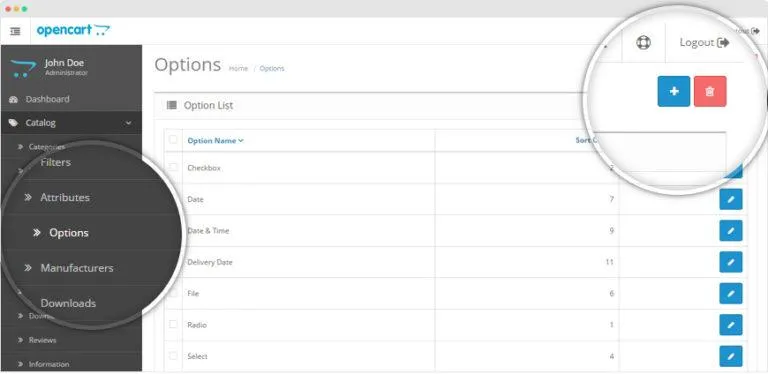
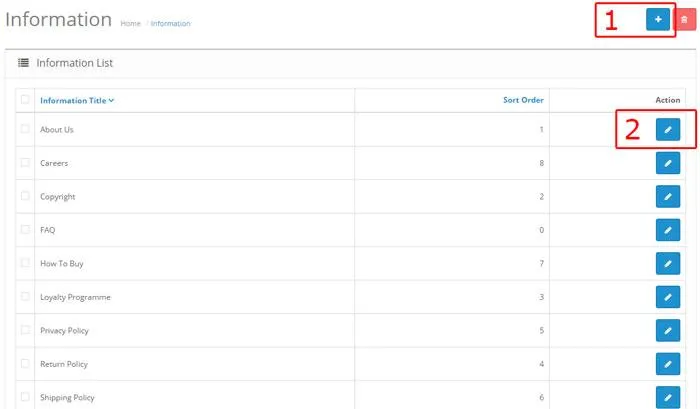
- Click the + icon at the top right to create a group.
- Enter the group name and click Save.
The customer group is now created.
B. Assigning registered customers to groups
- Click Customers > Customers.
- Edit the relevant customer.
- In General, choose the required Customer Group.
- Click Save.
C. Setting prices for customer groups
- Click Catalog > Products.
- Edit the relevant product.
- Open Data.
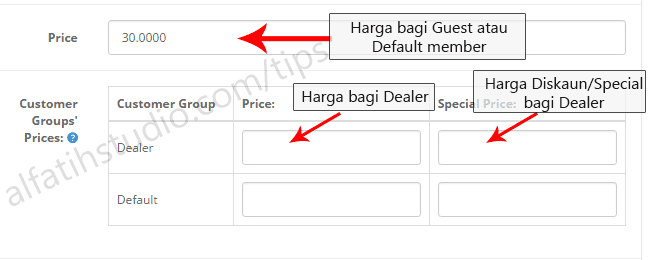
- Scroll to Price and Customer Groups Prices. Complete Price so unregistered customers and ordinary members can see the product price.
Enter prices for other groups, such as Dealer, in the fields shown in the original illustration. Click Save when finished.
That is all for this guide.
Original guide illustrations


Links from the original guide
https://alfatihstudio.com/tips/hubungi-kami
https://alfatihstudio.com/tips/wp-content/uploads/2016/08/cara-masukkan-harga-agen-opencart5.png
https://alfatihstudio.com/tips/wp-content/uploads/2016/08/cara-masukkan-harga-agen-opencart6.png
https://alfatihstudio.com/tips/wp-content/uploads/2015/10/save-opencart.png
https://alfatihstudio.com/tips/wp-content/uploads/2016/08/cara-masukkan-harga-agen-opencart7.png
https://alfatihstudio.com/tips/wp-content/uploads/2016/08/cara-masukkan-harga-agen-8.png
https://alfatihstudio.com/tips/wp-content/uploads/2016/08/cara-masukkan-harga-agen-9.png
https://alfatihstudio.com/tips/wp-content/uploads/2016/08/cara-masukkan-harga-agen-10.png
https://alfatihstudio.com/tips/wp-content/uploads/2016/08/cara-masukkan-harga-agen-opencart.png
https://alfatihstudio.com/tips/wp-content/uploads/2016/08/cara-masukkan-harga-agen-opencart2.png
https://alfatihstudio.com/tips/wp-content/uploads/2016/08/cara-masukkan-harga-agen-opencart3.png
https://alfatihstudio.com/tips/wp-content/uploads/2016/08/cara-masukkan-harga-agen-opencart4.png