Archive tutorial: this English version describes the original software and interface. Steps and screenshots may differ from current versions.
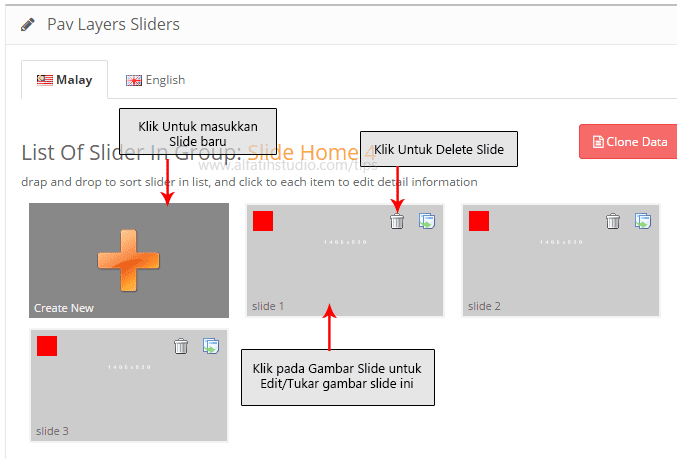
This guide is for websites using PAV, which provides a way to manage interactive slideshows. The steps below cover adding static images to a slideshow.
Editing and adding slideshow images
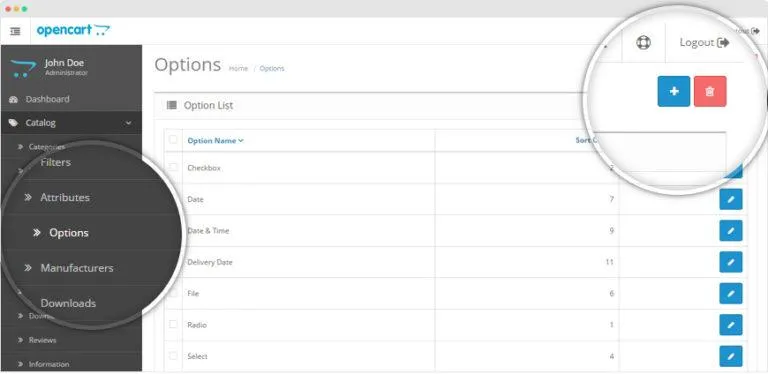
- Click Extensions > Modules.
- Click Edit for Pav Layers Sliders.
- Open Manage Slider Group.
- Select the configured slideshow. In this homepage example, click Slide Utama.
- Click Manages Sliders.
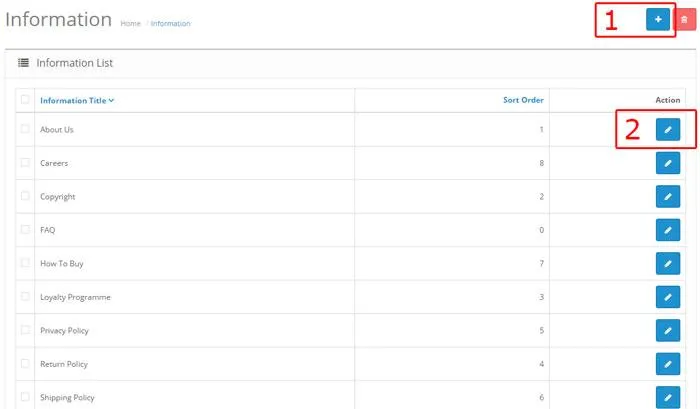
- Add a new slider.
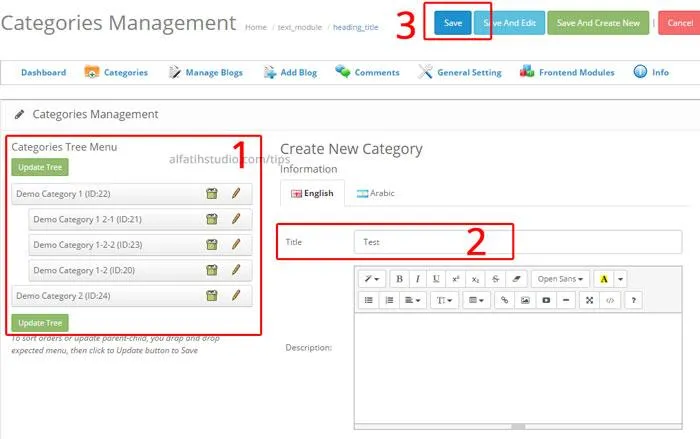
- Enter its name in Title, scroll down and click Update Image Slider. Upload and select an image using the required dimensions.
- After adding the image, click Save at the top right.
For bilingual websites, if both the Bahasa Malaysia and English versions use the same slideshow image, there is no need to upload it again for English.
Done.
Original guide illustrations


Links from the original guide
https://alfatihstudio.com/tips/wp-content/uploads/2016/08/Cara-Edit-menu-pav-menu-1.png
https://alfatihstudio.com/tips/wp-content/uploads/2016/08/cara-edit-slide.png
https://alfatihstudio.com/tips/wp-content/uploads/2016/08/cara-edit-slide2.png
https://alfatihstudio.com/tips/wp-content/uploads/2016/08/cara-edit-slide3.png
https://alfatihstudio.com/tips/wp-content/uploads/2016/08/cara-edit-slide4.png
https://alfatihstudio.com/tips/wp-content/uploads/2016/08/cara-edit-slide5.png
https://alfatihstudio.com/tips/wp-content/uploads/2016/08/cara-edit-slide6.png
https://alfatihstudio.com/tips/wp-content/uploads/2016/08/save.png