Archive tutorial: this English version describes the original software and interface. Steps and screenshots may differ from current versions.
Encouraging customers to register as affiliates can support your website marketing. Registered agents promote the website using their individual tracking codes and receive payment when their links generate sales.
Registering through the front end
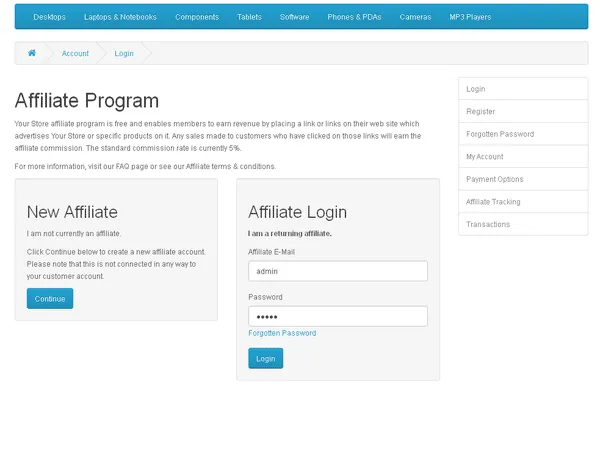
The Affiliate link is usually in the footer under Extras. It opens affiliate login and registration.
New agents use New Affiliate, while existing agents use Affiliate Login. Sidebar links generally become available after login.
Click Continue under New Affiliate. Enter the requested information and click Continue. If there are no problems, the next page confirms successful registration.
Approval for new affiliates
After registering, wait for the website administrator to approve the account. Refer to the earlier guide for the approval process.
My Account
Once approved, log in to open My Account.
Edit Your Account Information lets you update personal details. Change Your Password lets you set a new affiliate login password. Under Payment Option, enter your bank account or other preferred method for receiving commissions.
Product tracking codes
Each affiliate has a unique tracking code. Use the tracking link when promoting a product on Facebook or your website. Sales through that link can generate commission for your account.
Click Affiliate Tracking. The page lets you create product-specific tracking links. Leave Your Tracking Code unchanged because it identifies your affiliate account.
Under Tracking Link Generator, type a product name. Autocomplete displays products matching the letters you enter. Select the required product and its link appears under Tracking Link.
Use the link to promote the product or attach it to a website banner. Purchases through the link generate commission after approval by the website administrator.
Done.
Original guide illustrations


Links from the original guide
https://alfatihstudio.com/tips/wp-content/uploads/2016/08/sistem-affiliate-opencart-front-end1.png
https://alfatihstudio.com/tips/wp-content/uploads/2016/08/selesai-pendaftaran-affiliate-opencart.png
https://alfatihstudio.com/tips/tips-opencart/menguruskan-affiliate-dalam-sistem-opencart-back-end
https://alfatihstudio.com/tips/wp-content/uploads/2016/08/my-account-affiliate-opencart2.png
https://alfatihstudio.com/tips/wp-content/uploads/2016/08/my-account-affiliate-opencart.png