Archive tutorial: this English version describes the original software and interface. Steps and screenshots may differ from current versions.
You can set affiliate commission percentages in the administration area; refer to the linked earlier article. Different percentages can be assigned to individual affiliates.
When an order comes through an affiliate’s tracking link, the order information identifies the agent who generated the sale.
Confirming affiliate commission
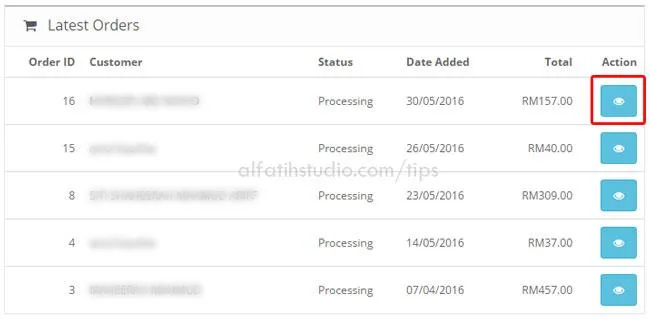
Log in to the OpenCart administration back end and open Sales > Orders. Click View Order as shown in the original illustration.
The order details include a commission confirmation section. Under Affiliate, find the agent who generated the sale. Click the green button on the far right to confirm commission.
After confirmation, a red button allows the commission to be cancelled again.
The agent receives an email confirming the successful sale and commission. Their My Account area also shows accumulated and paid commissions. Click Your Transaction to review them.
Adding commission manually
Go to Marketing > Affiliates and edit the relevant agent. Under Transaction, enter a commission manually if needed, then click Add Transaction.
That is all.
Original guide illustrations


Links from the original guide
https://alfatihstudio.com/tips/tips-opencart/menguruskan-affiliate-dalam-sistem-opencart-back-end
https://alfatihstudio.com/tips/wp-content/uploads/2016/08/masukkan-komisyen-affiliate.png
https://alfatihstudio.com/tips/wp-content/uploads/2016/08/masukkan-komisyen-affiliate4.png
https://alfatihstudio.com/tips/wp-content/uploads/2016/08/masukkan-komisyen-affiliate-5.png
https://alfatihstudio.com/tips/wp-content/uploads/2016/08/masukkan-komisyen-affiliate-6.png
https://alfatihstudio.com/tips/wp-content/uploads/2016/08/masukkan-komisyen-affiliate-7.png
https://alfatihstudio.com/tips/wp-content/uploads/2016/08/pembayaran-komisyen-affiliate-opencart.png